Digital signage for venues
Every screen in your venue, managed from one place
Casty puts menus, fixtures, offers and timetables on the screens in your pub, cafe, gym or shop. You design and schedule it in your browser, and can change it from anywhere.
- Runs on TVs, sticks, PCs and commercial displays
- Keeps playing if the internet drops
- Schedules by daypart, day and date
- Screenshots and alerts from every screen
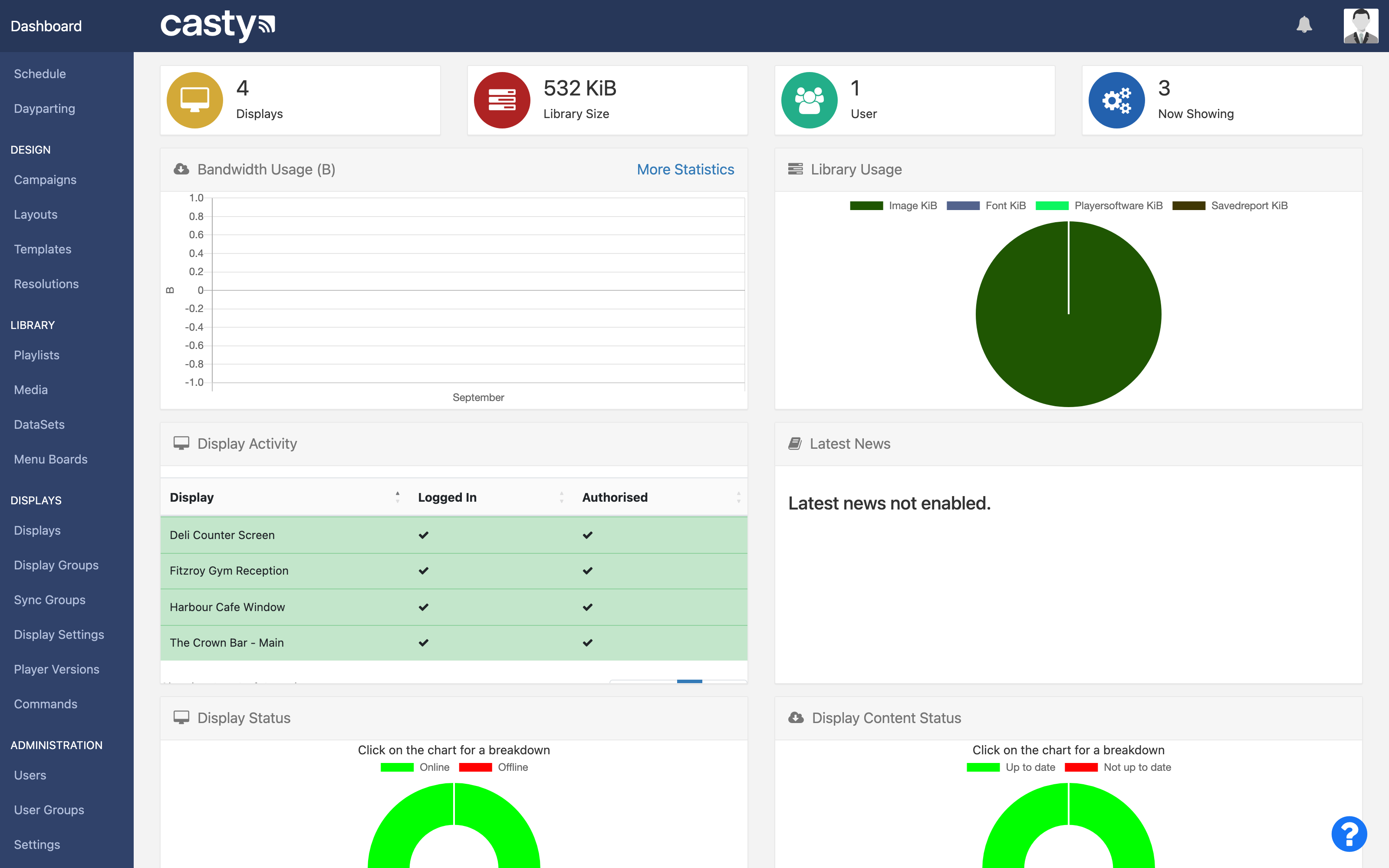
Works with the screens you have
Casty players run on streaming sticks, media players, PCs and commercial displays with the player built in.
- Amazon Fire TV
- Windows
- PHILIPS
- Hisense
Features
What Casty does
Casty is a full digital signage platform: a CMS in your browser for designing and scheduling content, and players that run it on your screens.
-
Layout designer and templates
Design screens in the browser with a drag-and-drop editor, or start from a template.
Read more -
Widgets and content types
Images, video, text, web pages, clocks, tickers, live data and more.
Read more -
Playlists and media library
Upload once, reuse everywhere, and let playlists fill themselves from tags.
Read more -
Menu boards
Keep products, prices and availability in one place and show them on any screen.
Read more -
Scheduling
Decide what plays, where and when, down to the minute.
Read more -
Display management and monitoring
See every screen's status, grab a screenshot and send commands from the browser.
Read more -
Remote commands
Reboot a player, switch a screen off or talk to a display over RS232.
Read more -
Datasets and live data
Keep tables of information separate from the design and show them anywhere.
Read more -
Interactive content and touch
Build touch screens and kiosks, or trigger content from other systems.
Read more -
Synchronised playback and video walls
Play the same content in step across several screens, mirrored or as one big picture.
Read more -
Proof of play and reporting
Records of what played, where and for how long, as charts, tables or scheduled reports.
Read more -
Users, permissions and multiple sites
Give each person the access they need, from full control to one playlist.
Read more -
Offline playback
Screens keep playing if the internet drops.
Read more
How it works
From your browser to the screen
There are two parts to Casty. The CMS is where you build and schedule content. The player is the app on each screen that plays it.
-
Step 1: Log in to the CMS
The Casty CMS runs in your web browser. Upload your images, videos and menus, and invite anyone else who updates the screens.
-
Step 2: Design a layout
Start from a template or build your own on the canvas. Split the screen into zones, add widgets and preview it before it goes live.
-
Step 3: Schedule it
Put the layout on the calendar for the screens or groups you choose. Use dayparts and repeats so the right content comes on by itself.
-
Step 4: Players show it
Each screen runs a Casty player. It downloads what it needs ahead of time, plays it, and reports back to the CMS.
Layout designer
Design screens without design software
Drag widgets onto the canvas, split the screen into zones and set how long each item plays. Preview it full screen, then publish when it is ready.
More on layouts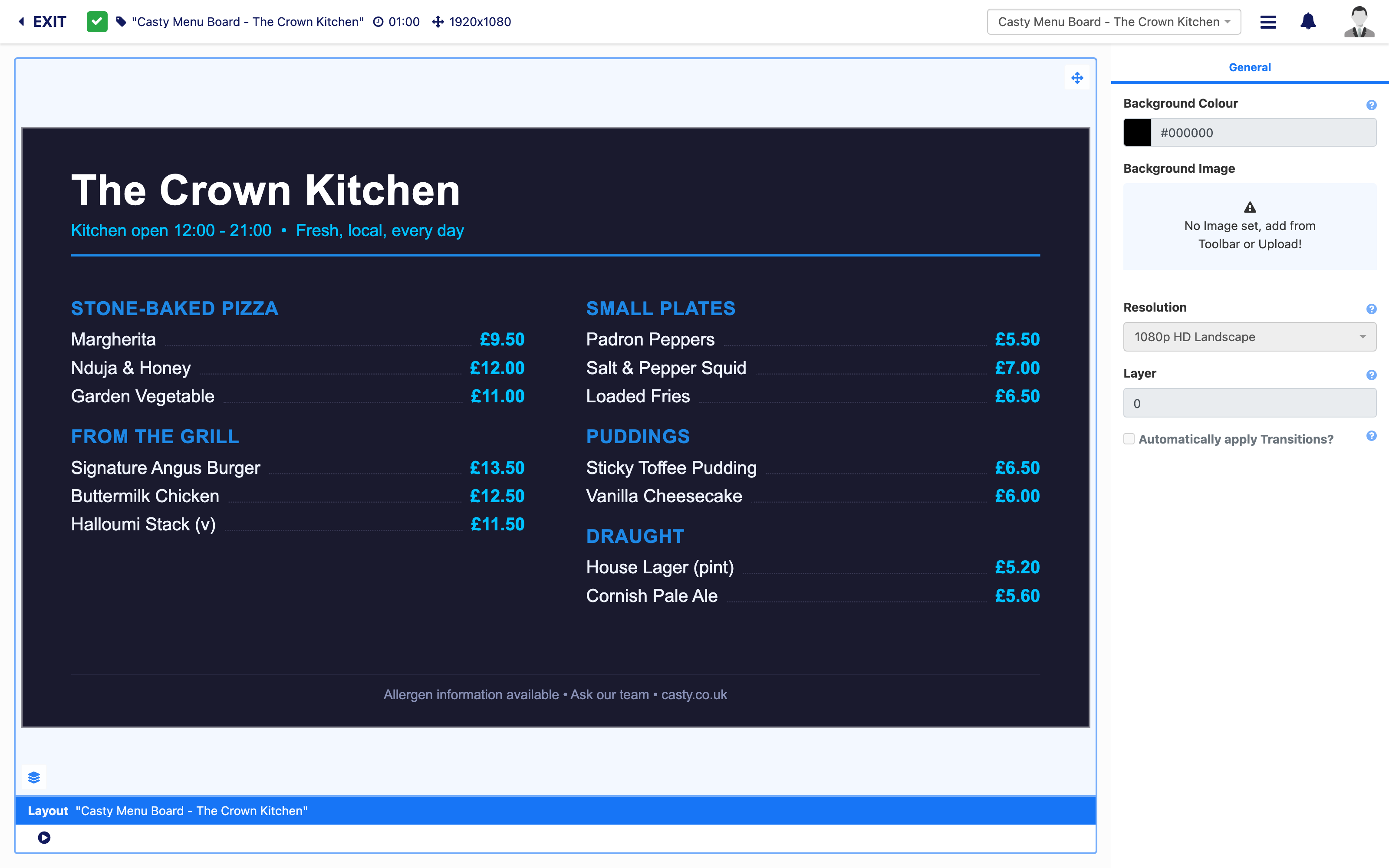
Scheduling
Set the week once and let it run
Build a weekly pattern with dayparts and repeats, then add one-off events on top. Priority events such as live sport take over while they run and hand back afterwards.
More on scheduling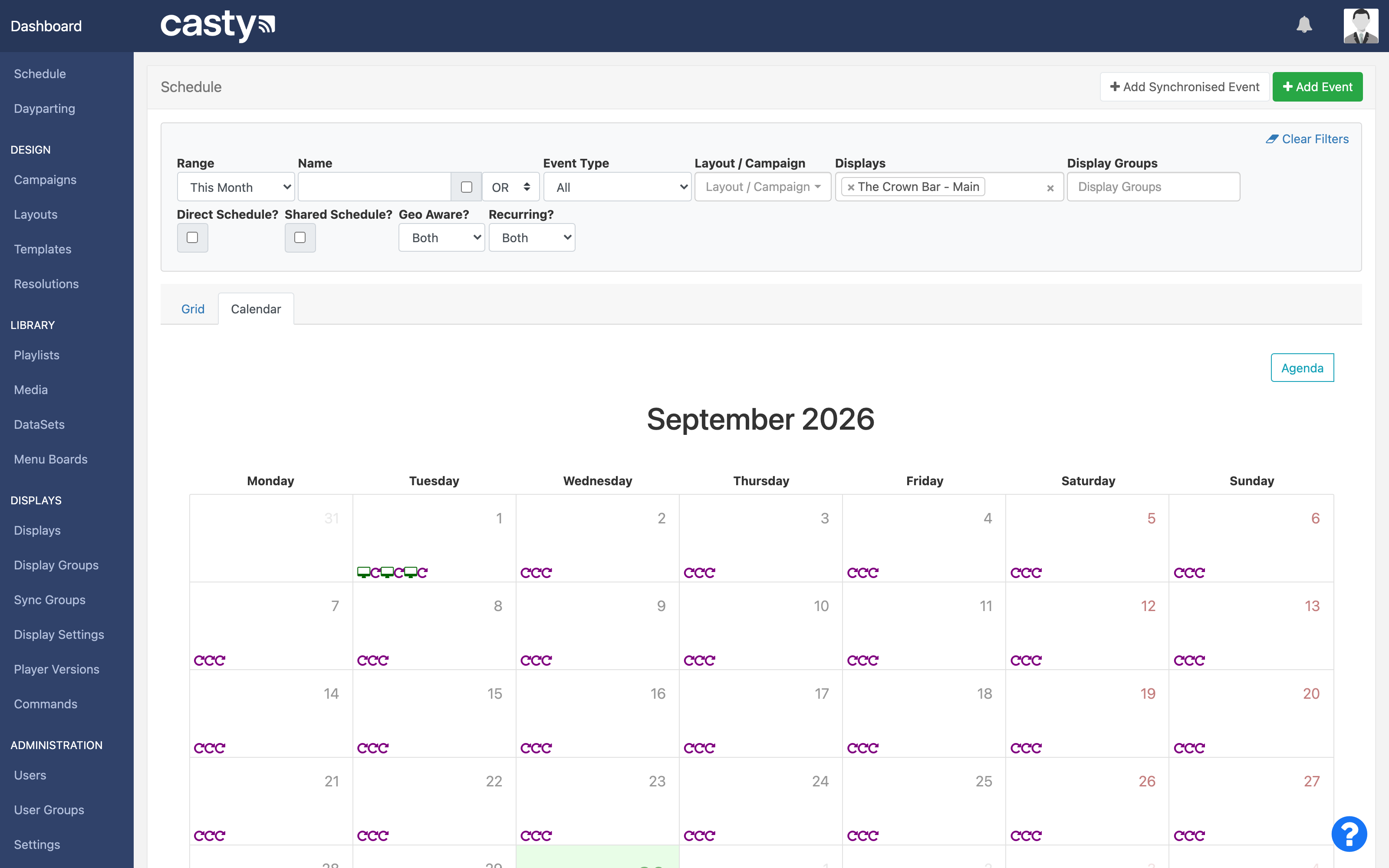
Displays
Know what every screen is doing
See when each display last checked in, what it is showing and whether it has downloaded everything. Take a screenshot or send a command without leaving your desk.
More on display management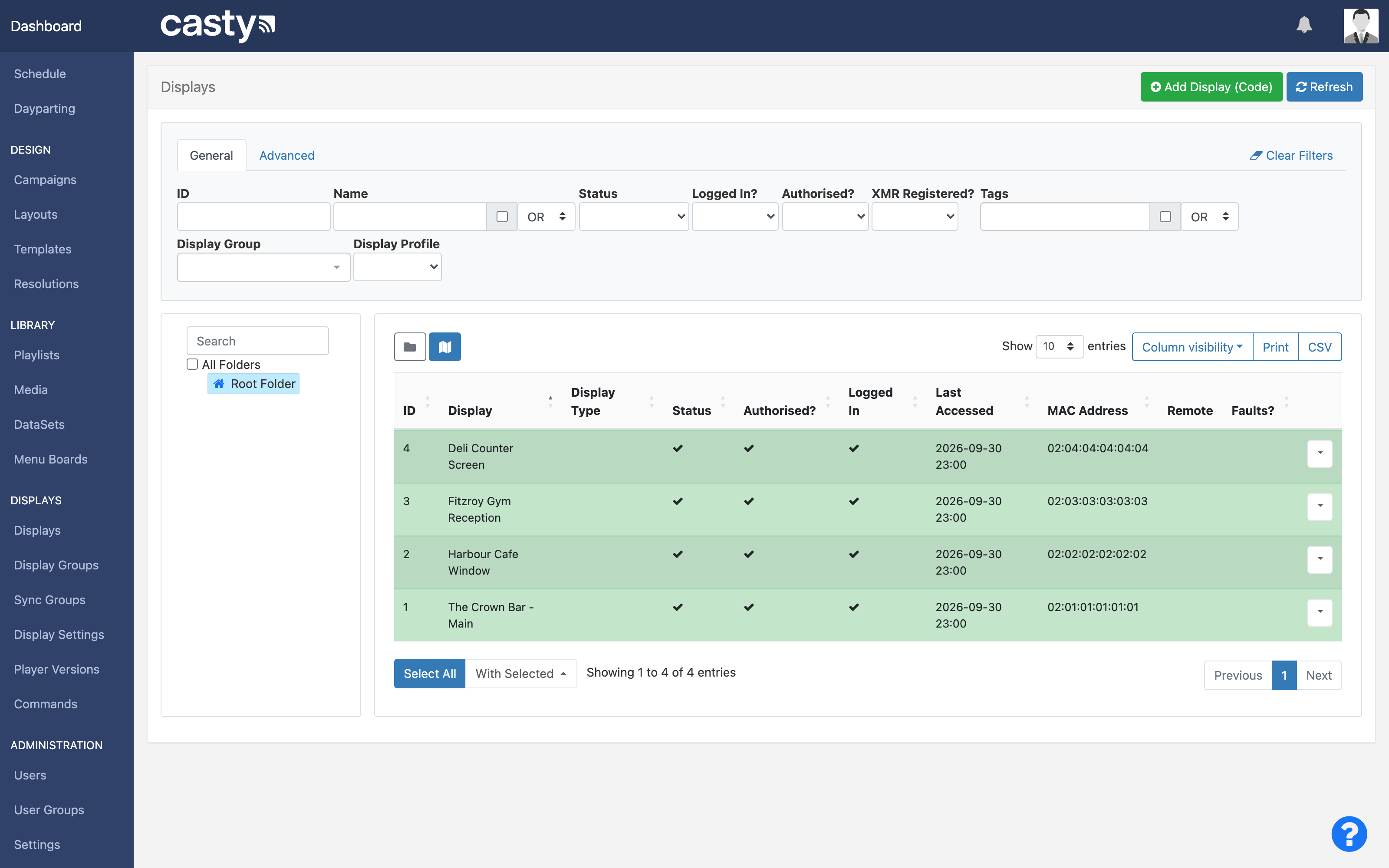
Use cases
Where it fits
Any business with a screen on the wall can use Casty. Here is how it could work in a few of them.
Pubs and bars
Fixtures and kick-off times by the bar, quiz nights and events through the week, and the food menu once the match is over. Put live sport on priority for the weekend and let the normal schedule take over again on Monday.
Cafes and restaurants
A menu board that switches from breakfast to lunch at 11:30 every day. Change a price or mark a dish as sold out in the menu board and every screen that shows it updates.
Gyms and leisure
Today's classes at reception, pulled from a dataset your team keeps up to date. Add a membership offer for a month and give it an end date so it comes down on time.
Shops and retail
Window and counter screens with this week's offers. Group screens by store, send a promotion to every branch at once, and check with proof of play that it ran.
Offices and receptions
Welcome messages, room bookings from a calendar feed, company news and a clock. Windows players can show PowerPoint, so existing slides can go straight on the screen.
Hotels
Reception and lift screens with the day's events, restaurant times and local weather. Touch screens can let guests browse information on their own.
What you get
What comes with Casty
Casty is run for you. You bring the screens and the ideas for what goes on them.
Nothing to install on your computer
Casty is hosted for you. You manage everything from a web browser on a laptop, tablet or phone, with no server to look after.
We set it up with you
We help you choose a player for each screen, connect your first displays and get your first layouts and schedule in place.
Player updates from the CMS
New player software can be pushed to screens from the CMS, so nobody needs to visit each one with a USB stick.
Help by email
If something is not doing what you expect, email us and we will help you sort it out.
What do I need to get started?
A screen, a Casty player for it and an internet connection. The player can be a streaming stick or media player plugged into a TV, a Windows PC, or a commercial display from Samsung, LG, Sony, Philips or Hisense with the player built in.
Can I use the TV I already have?
Usually, yes. Any TV with an HDMI port can take an Amazon Signage Stick or an Android media player. See the devices page for the full list and our advice on which to choose.
Can I change what is on screen when I am not at the venue?
Yes. The CMS runs in your browser, so you can edit layouts and schedules from anywhere. Players check in with the CMS regularly and pick up changes, and you can send a change to an online screen straight away.
Can different content play at different times of day?
Yes. You set up dayparts such as breakfast, lunch and evening, and schedule content into them. Events can repeat daily, weekly, monthly or on patterns such as the third Thursday of the month, and each display follows its own time zone.
Do I need design skills?
No. There are templates to start from, and the editor is drag and drop. If you already have designs, upload them as images or video and schedule them as they are.
What happens if the internet goes down?
The screen keeps playing. Players store their content locally and download it ahead of time, two days ahead by default. Anything that needs a live connection, such as a stream or a web page, will not show until the connection returns.
Will I know if a screen stops working?
The display list shows when each screen last checked in and whether it has everything it needs. Casty can email you when a display stops checking in, and you can take a screenshot of any online screen to see what it is showing.
Can I show live information such as prices, fixtures or class times?
Yes. Menu boards hold products and prices, and datasets hold any table of information, entered by hand, imported from a CSV file or fetched from a web address on a timer. Update the data and every screen showing it changes.
Can several screens play in sync, or make a video wall?
Yes. Sync groups keep two or more screens playing in step, either mirrored or as one picture across a video wall. This works on Android players on the same local network, ideally wired.
I run more than one venue. Can each manager look after their own screens?
Yes. Group displays by site, then use user groups, folders and sharing so each person sees and edits only what they should. Users who only need to change one playlist can have a simplified dashboard.
How much does it cost?
Get in touch and tell us how many screens and sites you have. We will reply with pricing for your venue.
Book a demo or ask for early access
Tell us about your venue and how many screens you have. We will get back to you by email.