Features
Everything Casty can do for your screens
Casty has two parts. The CMS runs in your browser and is where you build and schedule content and keep an eye on your screens. The player runs on each screen and keeps a local copy of what it needs to play. This page goes through each part in detail.
Layout designer and templates
A layout is one screen design. You build it on a canvas in your browser, drop in the content you want and arrange it into zones, then preview it before it goes anywhere near a screen.
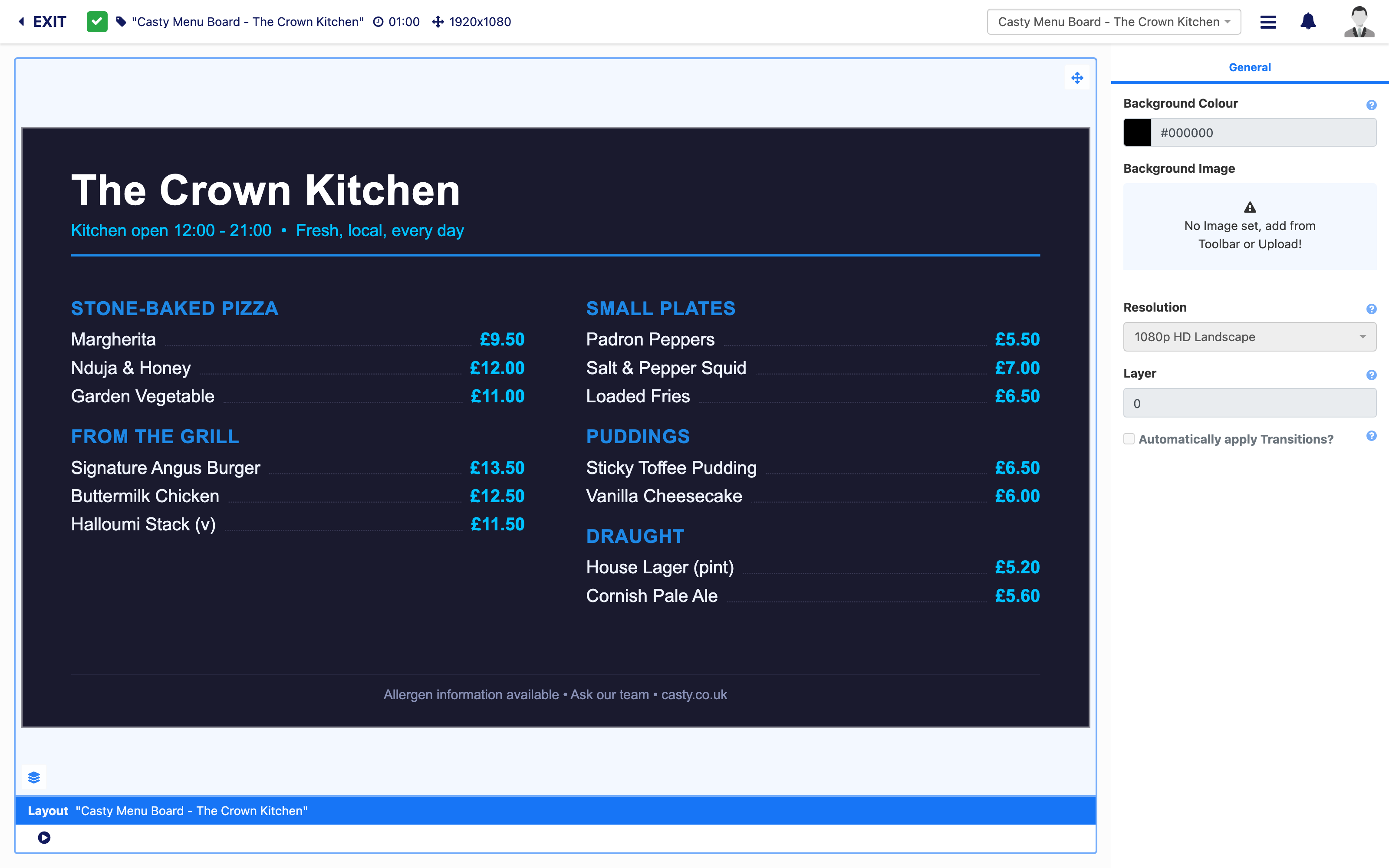
- Drag-and-drop canvas with snap-to positioning, resizing, rotation and layers
- Split a screen into zones, for example a menu on the left and a video on the right
- Landscape and portrait layouts at the resolution of your screen
- Colour or image backgrounds, transitions between items and your own uploaded fonts
- A template library to start from, and any finished layout can be saved as your own template
- Full-screen preview before publishing, with a draft and publish step so half-finished edits never reach a screen
- Set a future publish date so a new design switches over on its own
- Only one person can edit a layout at a time, so two people cannot overwrite each other
Widgets and content types
Widgets are the building blocks you place inside a layout. Most venues start with images, video and text, then add live information once the basics are running.
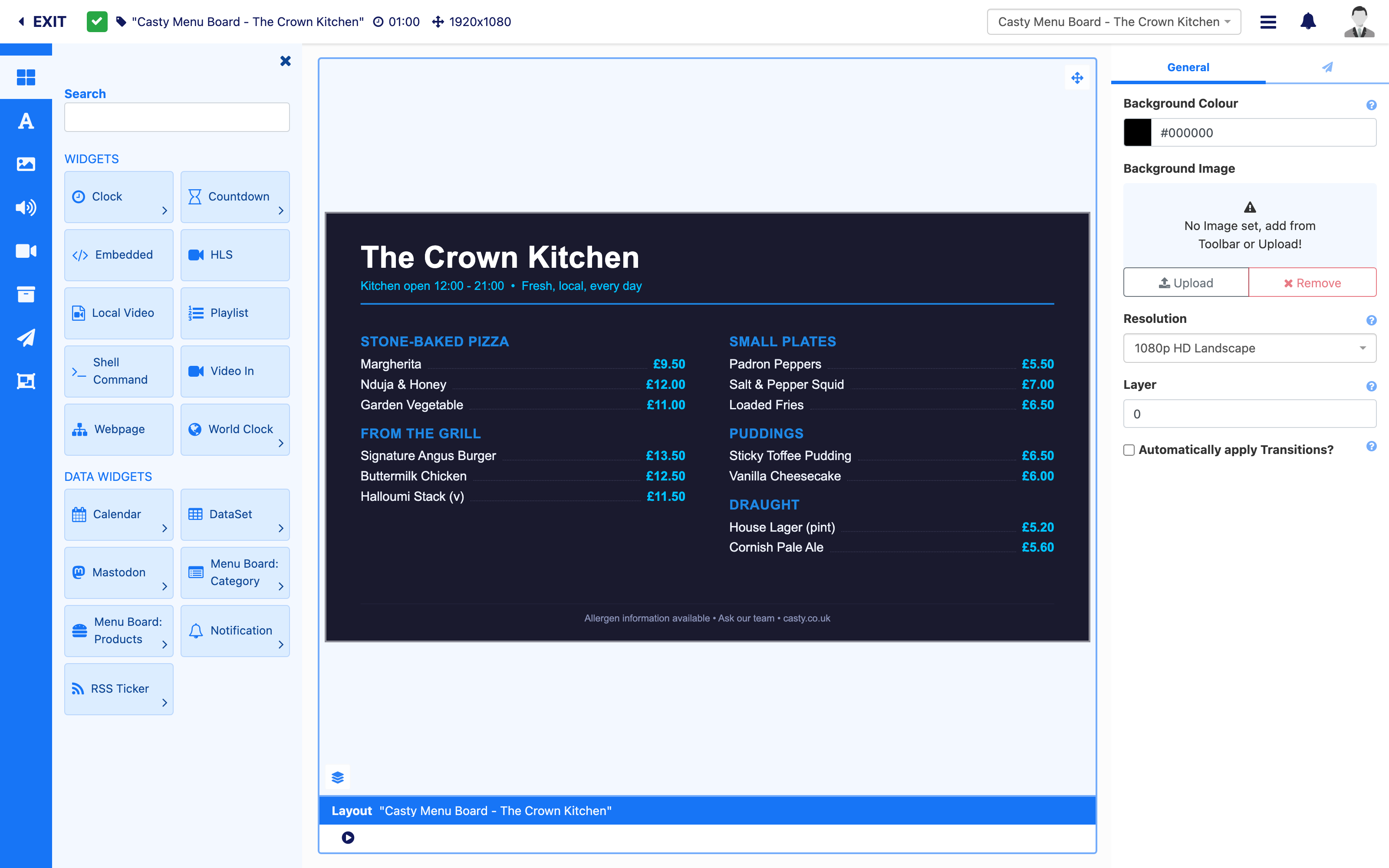
- Images, video and audio, with images scaled to fit the zone
- Text with auto-sizing, and scrolling tickers fed from RSS or your own data
- PDF documents, and PowerPoint files on Windows players with PowerPoint installed
- Web pages, embedded HTML and uploaded HTML packages
- Clock, world clock and countdown, for example a countdown to kick-off or a sale ending
- Calendar feeds for events and room bookings
- Weather, currency and stock widgets, which pull from third-party data services
- HLS live streams, and local video or capture inputs on players that support them
- Emergency alerts from Common Alerting Protocol feeds, targeted to the displays in the affected area
- Expiry dates on individual widgets, so a promotion drops out of a playlist on the right day
Playlists and media library
Everything you upload goes into one library. Playlists group items into a sequence you can drop into any layout, or send straight to a screen without building a layout at all.
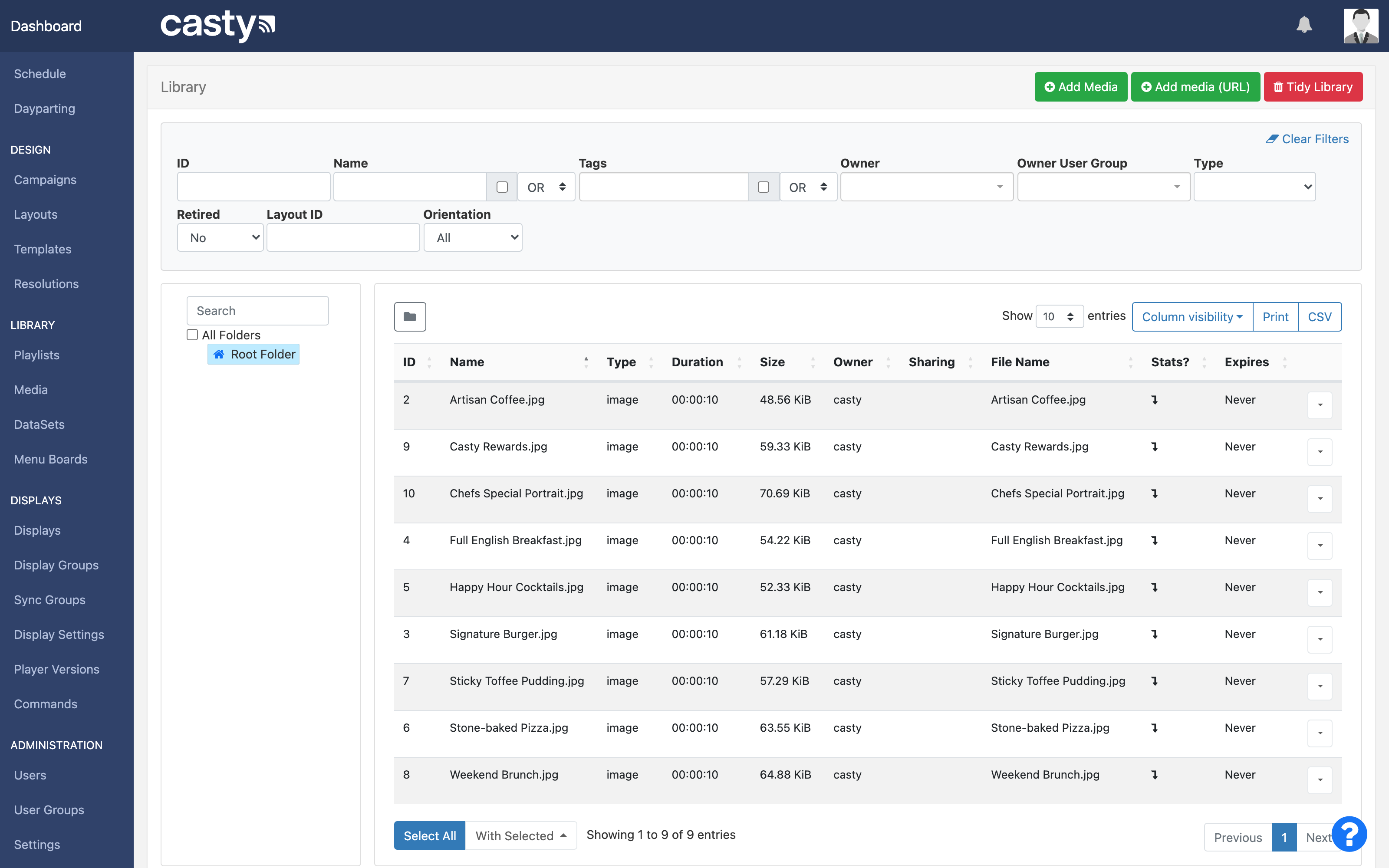
- Bulk upload by drag and drop, or add media from a web address
- Folders and tags to keep the library in order as it grows
- Start and end dates on media, so seasonal content retires itself
- Reusable playlists that can be added to many layouts or scheduled full screen on their own
- Dynamic playlists that pick up any new media matching a name or tag filter
- Playlists inside playlists, with spot settings to control how often each one plays
- A clean-up tool for unused media and usage reports by user
Menu boards
Menu boards hold your categories and products separately from the screen design. Change a price or mark a dish as sold out and every screen that shows it updates, with no layout editing.
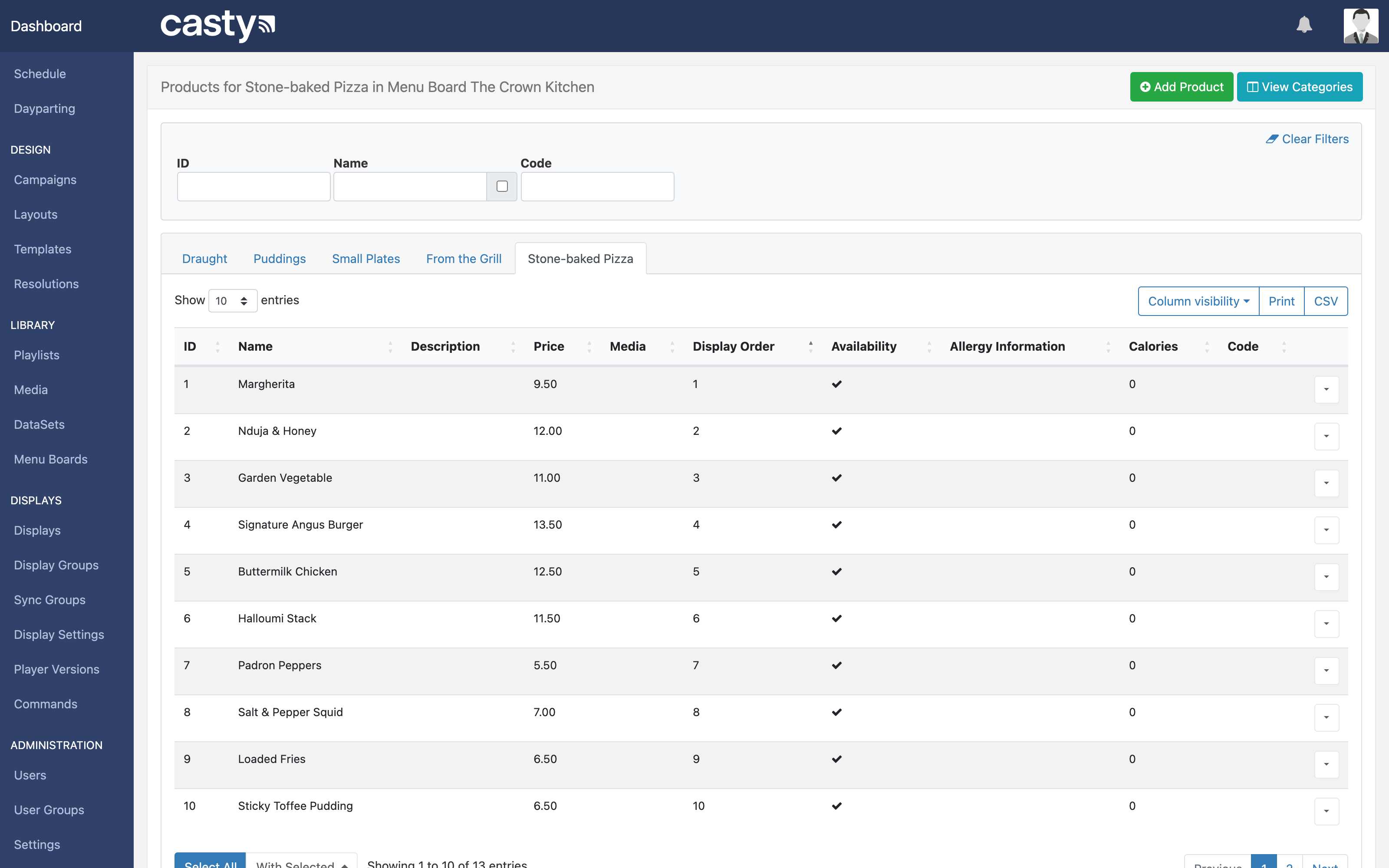
- Categories and products with names, descriptions, prices and images
- Extra product options for offers and limited deals
- Mark a product unavailable and the menu widget dims it on screen
- Category and product widgets for precise placement in a layout
- Staff can update the menu without having access to the layout designer
Scheduling
The schedule is a calendar for your screens. Each event says what should play, on which screens or groups, and for how long. Recurring events repeat on their own, so the breakfast menu comes on at seven every morning without anyone touching it.
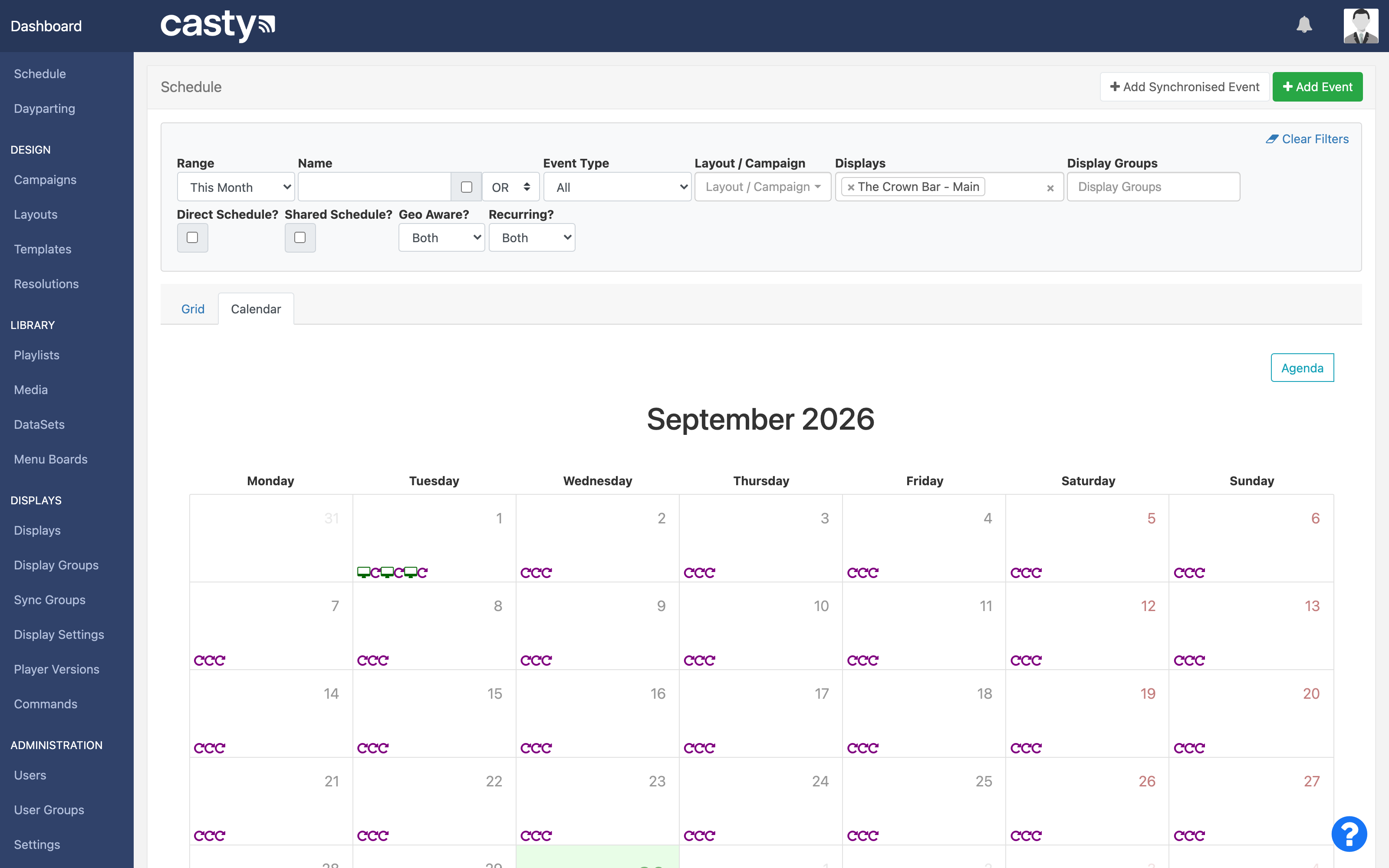
- Schedule layouts, campaigns, playlists, single images or videos, commands and overlays
- Dayparts such as breakfast, lunch and evening that you define once and reuse
- Repeats by the minute, hour, day, week, month or year, including every other week or the third Thursday of the month, with an end date
- Campaigns that play a set of layouts in order, or cycle through them one per turn
- Priority events that push ahead of everything else, then hand back to the normal schedule when they end
- Interrupt layouts that take a share of airtime, set as seconds per hour or a percentage
- Overlay layouts that sit on top of whatever is already playing, such as a ticker or a logo
- A cap on plays per hour, and a display order for events that run at the same time
- Geo-location scheduling, drawing areas on a map so content only plays in those places
- Each display keeps its own time zone, so content starts at the right local time
- Schedule reminders sent to the CMS notification centre or by email
- An agenda view that shows what is on each screen now
Display management and monitoring
Every screen you connect appears in the display list. From there you can see when it last checked in, whether it has downloaded everything it needs, and what it is showing, without going to the venue.
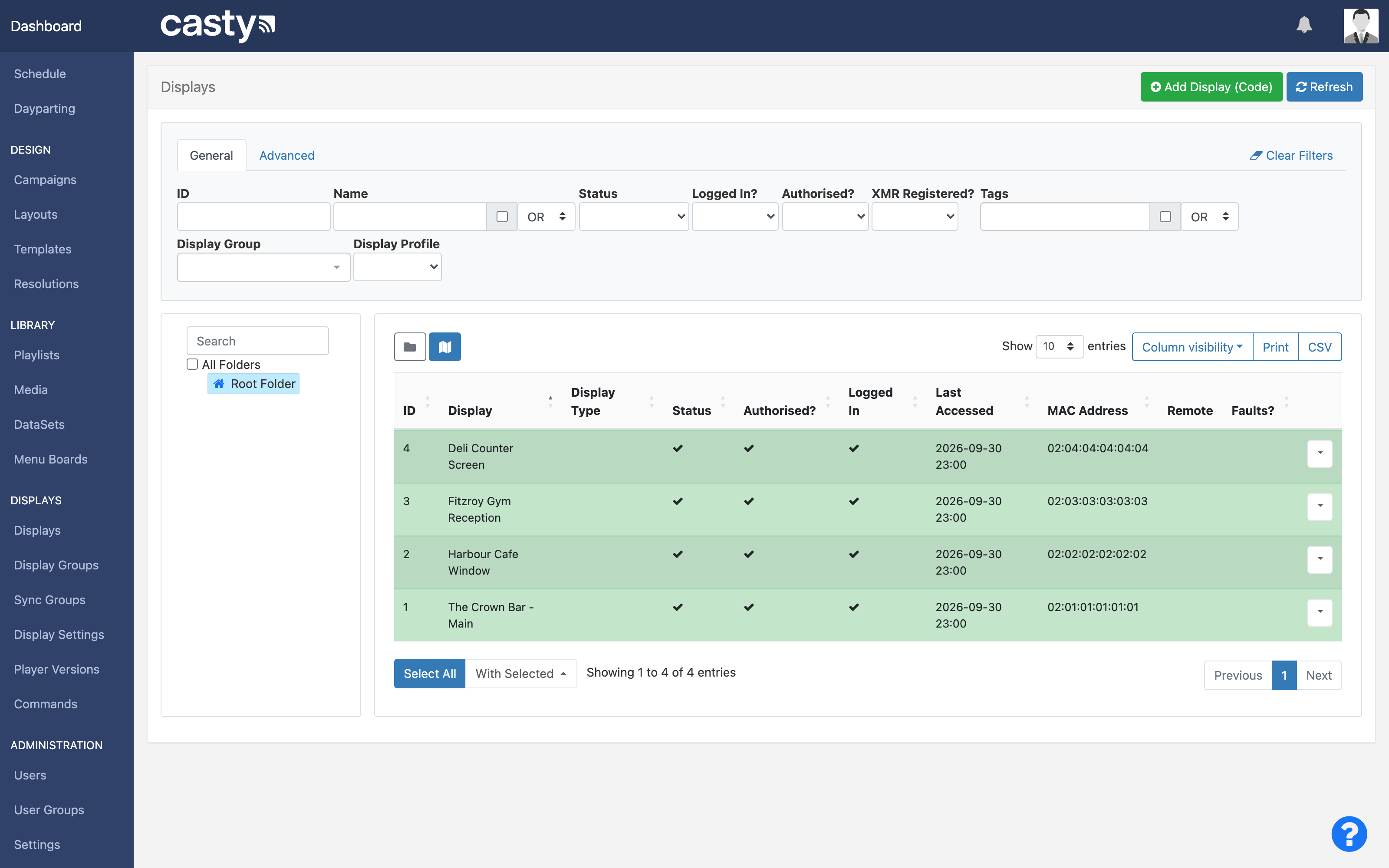
- Connect a new screen by entering the short code it shows on first start
- Status and last check-in time for each display, and whether its downloads are complete
- On-demand screenshots of what a screen is showing
- Email alerts when a display stops checking in
- Display groups, including dynamic groups that fill themselves from names or tags, and groups inside groups
- Display profiles that apply the same settings to many screens at once
- Operating hours, screen power, volume and brightness control on hardware that supports it
- A map view of your displays, with the location set per screen
- Player software updates pushed from the CMS
- Bandwidth limits, display logs and player status requests for troubleshooting
- A default layout for each screen, shown whenever nothing else is scheduled
Remote commands
Commands let the CMS control the hardware as well as the content. You set a command up once, then run it on a schedule, send it to a screen straight away, or fire it from a touch on an interactive layout.
- Built-in commands on Samsung and LG displays, such as reboot and screen power
- RS232 commands for commercial displays with a serial port
- Shell commands on Windows and Android, and Android intents
- HTTP requests to other systems on your network
- Scheduled commands, instant commands pushed to online displays, and commands triggered from a layout
- Wake on LAN where the player hardware supports it
Datasets and live data
Datasets are simple tables, like a spreadsheet, that sit behind your screens. A fixtures list, a class timetable or a price list can live in a dataset, and every layout that shows it stays up to date when a row changes.
- Enter rows by hand, or import a CSV file
- Remote datasets that fetch JSON or CSV from a web address on a refresh interval, with authentication and custom headers
- Formula columns for simple calculations
- Show a dataset as a table or as individual fields placed anywhere in a layout
- Publish a dataset as an RSS feed for tickers
- Real-time data connectors that push updates to the player without waiting for the next refresh
- An OAuth2 JSON API for connecting your own systems
Interactive content and touch
Any layout can become interactive. Tap a button to open a page, swipe through products, or let another system change what is on screen by calling a web address.
- Triggers from a touch or click, a webhook call or a key press on an attached keyboard
- Actions to go to the next or previous layout, jump to a specific layout, or move between widgets
- Actions can be set on a whole layout, a single zone or a widget
- Scheduled action events that listen for a webhook code, then switch content or run a command
- Touch needs a display with a touch panel, and is switched on per display on Android
Synchronised playback and video walls
Sync groups tie two or more screens together so they play in step. Use it to mirror the same content along a bar, or to split one picture across a video wall.
- Mirrored or video wall arrangements across two or more displays
- One lead display keeps the timing for the rest of the group
- A content synchronisation key lines up playlists across different layouts
- Players talk to each other over the local network, so a wired connection and matching hardware give the best results
- Available on Android players
Proof of play and reporting
Players can record every time a layout, a media item or a widget plays. That gives you a record for anyone who pays to be on your screens, and a way to check that the schedule is doing what you meant it to.
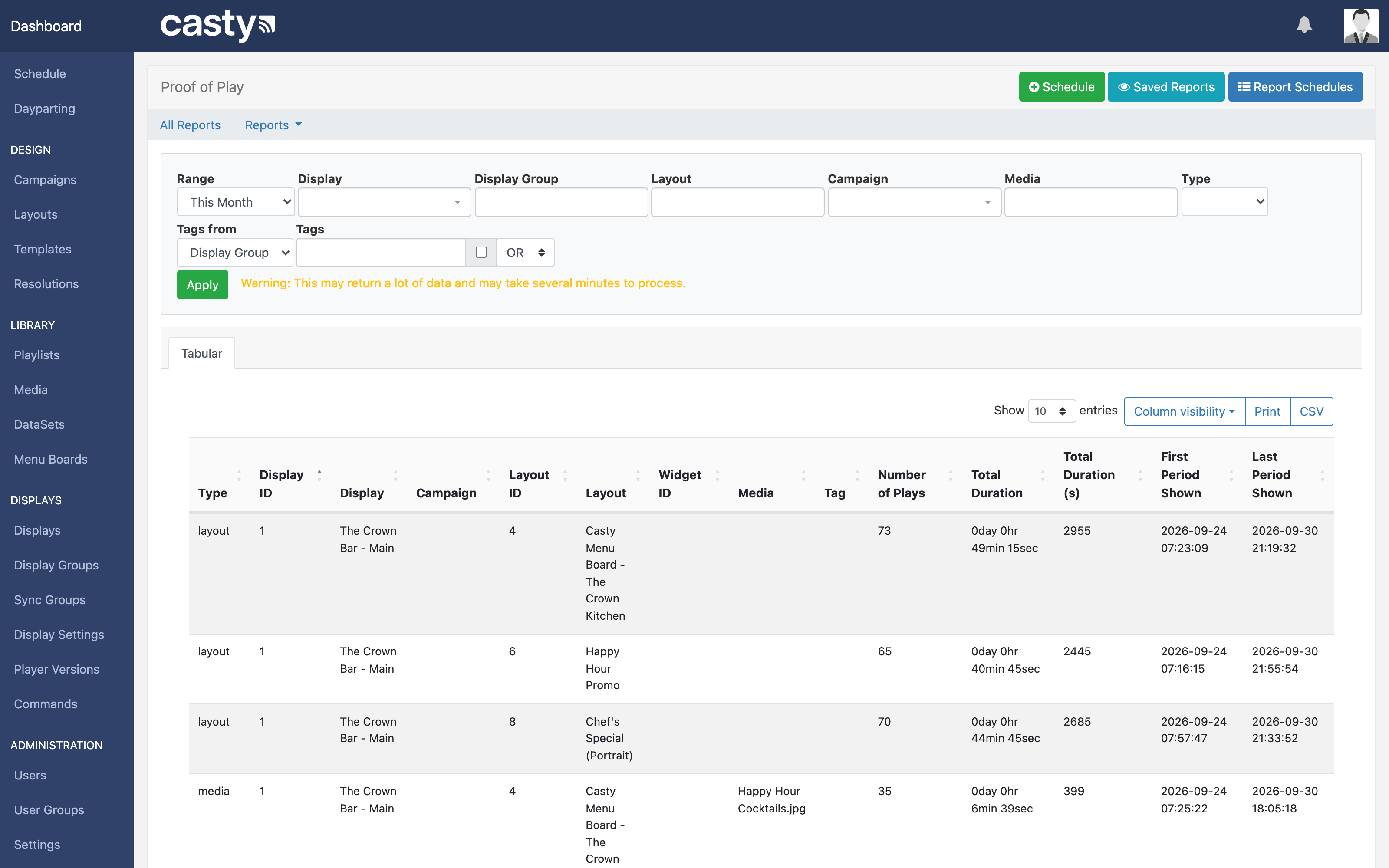
- Proof of play at display, layout, media or widget level, switched on where you need it
- Keep detailed records, or summaries by hour or day
- View results as charts and tables, or export to CSV
- Scheduled reports sent as PDF by email for the period you choose
- Optional recording of location with each play
- An audit trail of changes made by users in the CMS
Users, permissions and multiple sites
If you run more than one venue or have staff who update the screens, you can decide exactly what each person sees and can change.
- User groups with feature access, so a group sees only the parts of the CMS it needs
- View, edit and delete sharing on individual items
- Folders whose sharing applies to everything inside them, with sub-folders inheriting it
- A home folder per user as their default save location
- A simplified dashboard for users who only manage a playlist, such as a bar manager changing tonight's offers
- Two-factor authentication
- Displays grouped by site, so each venue manager schedules only their own screens
Offline playback
Players download media and schedules ahead of time and play from local storage. If the connection goes, the screen carries on with what it already has and catches up when the connection returns.
- Media, layouts and schedules are stored on the player for local playback
- Content is downloaded ahead of its scheduled time, two days ahead by default and adjustable
- Players start without anyone logging in and recover on their own after a power cut
- Anything that needs the internet, such as a live stream or an embedded web page, will not show while offline
Some features depend on the player and hardware. Screen power, RS232 and built-in commands need a display that supports them, touch needs a touch panel, and synchronised playback is available on Android players. The devices page has the details for each platform.
See it working on your own screens
Tell us about your venue and how many screens you have. We will get back to you by email.